

|
|
Article ID: 2853
Last updated: 22 Jan, 2026
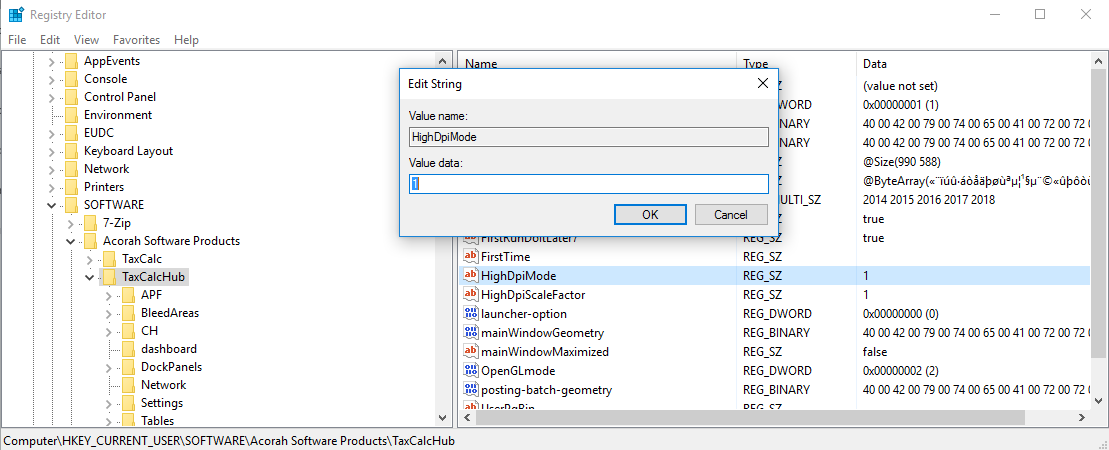
In some cases users prefer to change the zoom settings in TaxCalc rather than their display settings, However, if too radical a change is made to the Advanced Display Settings (High DPI Support) the TaxCalc display can become garbled. In this case the registry setting that control the High DPI settings need to be reset. This can be done via the TaxCalc Configuration tool, or directly through editing the registry. Using the TaxCalc Configuration tool
Please Note: if the tool cannot be downloaded or run as above, then users may need to choose one of the other options to reset the registry values Edit the Registry directly
1) Click the macOS finder icon (usually located on the macOS dock at the bottom of the screen). 2) Click Go, at the top of the screen. 3) Click Go to Folder
4) Type the below, then press enter:
Double click the preferences folder, delete the file called com.acorahsoftwareproducts.TaxCalcHub.plist then re-launch TaxCalc and the display should be as it was originally.
This article was:
|
||||||||||||||||
.png)
.png)
.png)


 Cookie Settings