

|
|
Article ID: 2829
Last updated: 06 Feb, 2026
Please see below the step by step instructions on how to change a password for TaxCalc users. Please note if you are using Email Login you will need to look at the following article: Resetting your Password for Email Login Setup Users Step 1: Log into TaxCalc as the admin userOpen TaxCalc and log in with your hub admin username and password
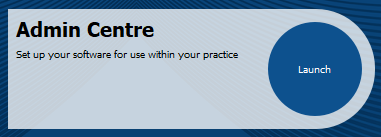
Step 2: Open AdminLaunch Admin from the home screen.
Step 3: Open the Users Admin Panel When Admin Centre opens, select Users from the left-hand menu.
The screen will show the user accounts that have already been created. If TaxCalc has just been installed it will just show the hub admin account. Step 4: Reset Password
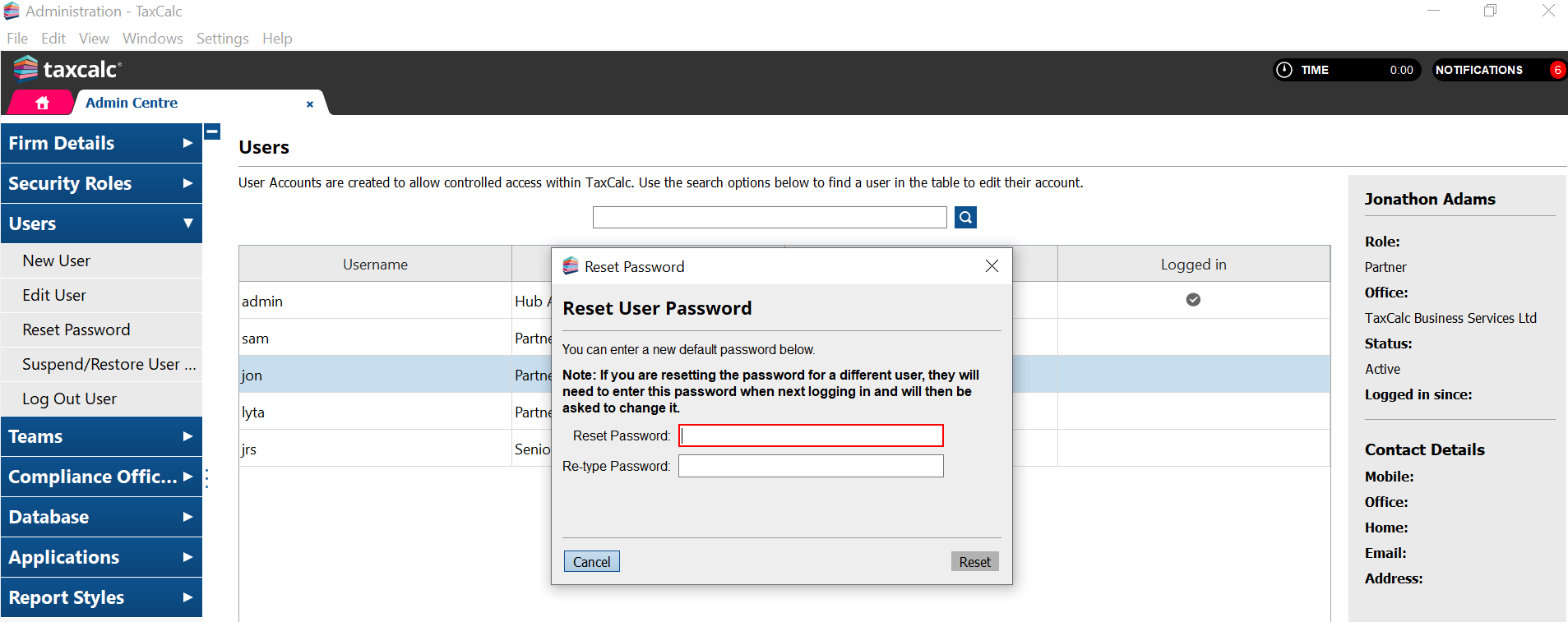
Right click on the username you want to change the password for. Enter the password you want them to use. Please Note: If you are resetting someone else's password, this is a one use password and will have to be changed the first time the user tries to log in Click on Reset. The next time someone logs in using the relevant username, they need to enter the password you set in Step 4 above. They will then be prompted to set their own password that they will use going forward.
This article was:
|
||||||||||||||||||
.png)
.PNG)


 Cookie Settings